PDF Reader: Documents Master
- 3.9
- Rating
- 500.00K
- Installs
- Free
- Price
 Analysis by App-foxy
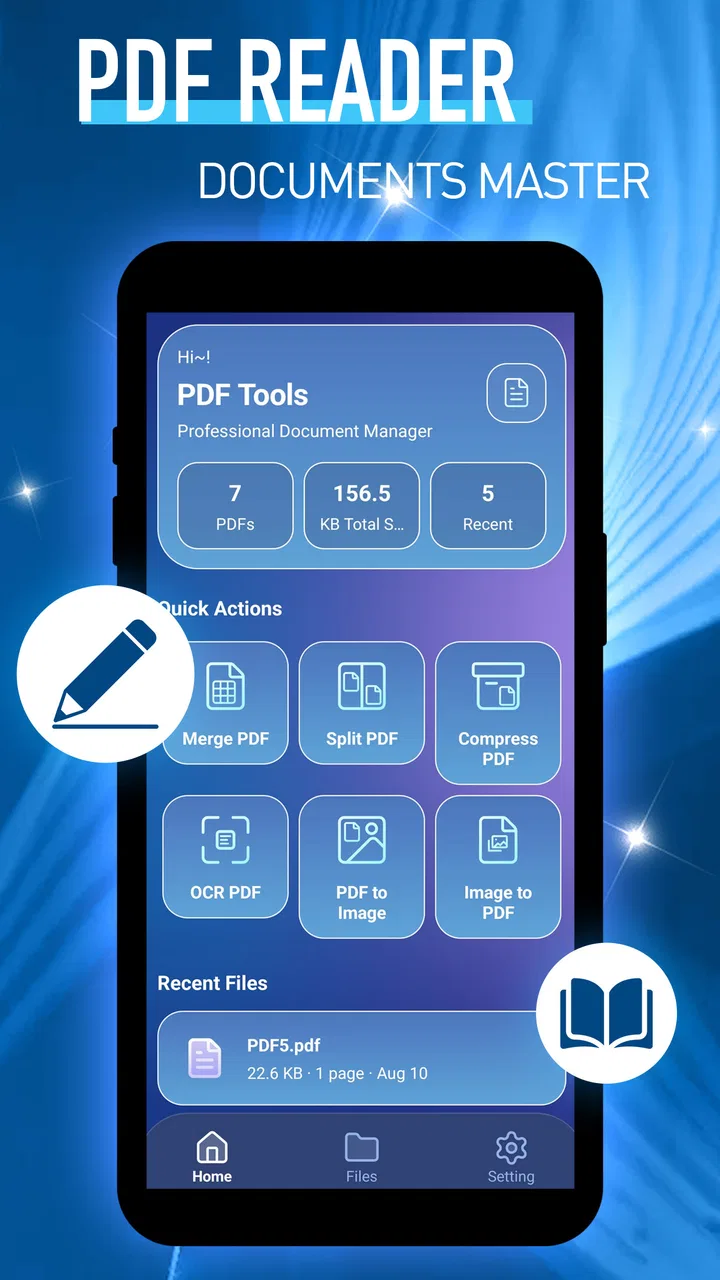
PDF Reader: Documents Master is a straightforward tools app from Praya that I would place in the “keep a document ready when you need it” category. Its purpose is clear from the name: it is a PDF reader, aimed at opening and handling documents without making the process feel complicated. I tested it with the mindset of someone who does not want a full office suite, a cloud workspace, or a complicated document-management system just to read a file.
That narrow focus is its main appeal. When I only need to inspect a manual, check a form, read a receipt, or review a document someone sent me, a dedicated reader can feel more comfortable than a large productivity package. At the same time, a simple reader has to get the basics right: finding a file, opening it, moving through pages, and reading for more than a few seconds without unnecessary friction. My overall impression is that this app is most interesting for people who value a focused PDF experience, especially on a device where a large office app would feel excessive.
Reading and navigation without unnecessary clutter
The first thing I look for in a document reader is whether it helps me reach the actual page quickly. PDF Reader: Documents Master presents itself as a practical document tool rather than a broad workspace, and that distinction matters. I do not expect it to replace a complete editor. I expect it to make reading feel direct, with the document taking priority over unrelated functions.
You May Also Like

 AccuWeather: Weather Radar
AccuWeather Review: A Quick, Clear Forecast for Everyday Decisions
For everyday plans, the best forecast is the one you can understand quickly. AccuWeather makes rain timing, radar, and local conditions easy to act on, with a few trade-offs.

 Hill Climb Racing
Why Hill Climb Racing Still Turns Crashes Into One More Run
A tiny car, a bumpy hill and one more upgrade: Hill Climb Racing keeps resurfacing because its simple chaos makes every near-miss feel personal.

 AliExpress - Shopping App
AliExpress Makes Global Shopping Feel Personal, but Shoppers Bear the Risk
AliExpress turns a global marketplace into a pocket-sized discovery engine. Its reach is useful, its shopping loop compelling, and its trade-offs easy to miss.

 Lords Mobile: Kingdom Wars
Lords Mobile Is a Kingdom-Building Routine, Not a Quick Match
A case-by-case verdict on the building, battles, device demands, and social commitments that make Lords Mobile rewarding for some players and exhausting for others.

 PDF Scanner app - TapScanner
TapScanner Makes Paperwork Easier to Capture, Check, and Share
TapScanner makes scanning with a phone feel less like a rescue operation and more like a dependable step in getting work done. Its capture tools are useful, though not flawless.

 Block Blast!
 Shows How Much a Puzzle Game Can Leave Out
A quiet grid game shows why puzzle players increasingly value instant clarity, repeatable skill and low-pressure play—and where the genre still needs to catch up.
More From Our News Desk
View All News


For everyday reading, the most useful habit is to treat the app as a viewing station rather than as a place to reorganize your entire digital life. If I receive a PDF in a message, download a guide, or save a form for later, I want to open it, identify the page I need, and close it again. This is where a dedicated reader can be less distracting than an office suite that surrounds the file with editing, sharing, collaboration, and account-related options.
Navigation also affects people who read at different speeds. A person scanning a long document may want to move rapidly between pages, while someone studying instructions may prefer a slower rhythm and repeated returns to a particular section. In my experience, a good PDF reader should support both habits without making the user feel lost. The practical test is not whether the interface looks impressive; it is whether I can stop reading, come back later, and understand where I am.
One useful workflow is to open a document before leaving a reliable connection, especially when I know I will be reading in a place with weak service. That avoids turning a simple reading task into a search for a signal. I also recommend keeping important files named clearly before opening them. A reader can display a document, but sensible file names remain one of the easiest ways to reduce confusion when several forms or manuals look similar.
The app’s free availability makes this kind of focused use easy to try. It is listed for Everyone, which makes it suitable for a broad audience from an age-rating perspective. That does not automatically mean every person will find the interface equally comfortable, but it does signal that the intended use is ordinary document handling rather than specialized or mature content.
PDF Reader: Documents Master has a current version of 1.0.1, so I would approach it as a relatively early product rather than a deeply established document platform. That is not a criticism by itself. Early versions can be pleasantly uncluttered, but they also deserve a little patience when a workflow does not feel as polished as the long-standing alternatives. I would keep expectations centered on reading PDFs, not on advanced document production.
What helps different reading styles
Readability is more than displaying text on a screen. It includes the effort required to locate a file, understand the page position, and return to a document after an interruption. For someone with attention difficulties, a focused reader may be easier to approach than an app filled with unrelated controls. For someone who reads slowly, a calm document-first layout can reduce the mental work of deciding which tool to use next.
There is also a useful distinction between reading and editing. If I am reviewing a contract or checking a school handout, I may only need to inspect the content. If I need to correct wording, add comments, sign a form, or rearrange pages, I would look for a dedicated editor instead. Choosing the smaller tool for the smaller job can make the experience more predictable, but only if I accept that it is not a complete PDF workshop.
On a small phone screen, I would use it for short checks rather than long reading sessions whenever possible. A phone is convenient for confirming a page or looking up a passage, but extended reading can be tiring because of the limited display area. On a larger mobile device, the same document may become easier to follow. This is less about the app making a promise and more about matching the reading task to the screen available.
Access across abilities, places, and everyday situations
I also think about access in the situations surrounding a document, not just the moment it opens. A file may be read in a bright waiting room, on a small screen, or by someone who benefits from taking their time, so I’d test it under the conditions I actually expect to face. That practical check helps clarify which everyday routines are a comfortable fit.
Motor and sensory considerations
PDF reading can be physically demanding in ways that are easy to overlook. Repeated swipes, precise taps, and small controls may be uncomfortable for someone with limited dexterity or hand fatigue. I would therefore judge this app by how little unnecessary interaction it requires. For a short document, a simple open-and-read routine is preferable to a chain of buttons. For a long document, however, the experience depends heavily on how easily the reader can move without accidentally changing the view or losing the page.
People with low vision also need to think about the PDF itself, not only the reader. A document created with tiny text, poor contrast, or a scanned image may remain difficult even inside a capable viewer. This is one of the most important practical limitations: a reader cannot automatically turn every badly designed PDF into an accessible one. If the original file contains image-based pages, unusual fonts, or a complex layout, reading comfort may still be poor.
For users who are sensitive to visual clutter, the focused purpose of this app may be welcome. Keeping the task centered on the document can make it easier to concentrate than working inside a broader productivity application. On the other hand, anyone who depends on specialized display adjustments, spoken reading, or carefully tailored text presentation should test the app with their own device settings before relying on it for essential material.
I would also separate device accessibility from document accessibility. Android’s own settings and assistive tools can influence how a person interacts with an app, but compatibility can vary from one application to another. I would not assume that every accessibility preference behaves perfectly here simply because the app is a PDF reader. The sensible approach is to try an ordinary file first, then a longer or more demanding document, before moving important work into it.
Situational access in real life
A realistic example is a commuter who receives a PDF timetable, appointment instruction, or insurance document shortly before leaving home. With a focused reader, the goal is not to edit anything; it is to open the file, check a detail, and keep moving. In that situation, a free tool with a simple purpose can be more practical than installing a large office package for a single document.
Another example is a family member helping someone who is less comfortable with smartphones. A narrow app category can make the explanation easier: open the reader, choose the document, and read it. That simplicity can reduce the number of decisions involved. Still, I would prepare the file in advance and use clear filenames, because searching through a crowded download folder can create more difficulty than the reader itself.
Students and workers may also use it as a quick reference during a meeting or class. The advantage is convenience, especially when carrying paper is awkward. The trade-off is that a phone can bring notifications, glare, and interruptions. If concentration matters, I would use a larger screen or a quieter setting rather than blaming the reader for distractions caused by the device.
For someone working with confidential documents, I would be careful about treating any reader as a complete privacy solution. The app’s role is to display PDFs; that does not by itself explain how a user should manage sensitive files, backups, sharing, or storage. My practical advice is to keep confidential documents in a location you already trust, avoid opening them on a shared device, and remove temporary copies when they are no longer needed.
The app is also a reasonable option for people who want to avoid paying simply to open a PDF. Since it is free, the barrier to trying it is low. Its average rating is 3.8 from around 81 ratings, which suggests a mixed but usable early reception rather than universal approval. I read that as a reason to try it with your own common documents instead of assuming it will suit every workflow.
Where the experience may still create barriers
The biggest barrier is the difference between “reading a PDF” and “managing documents.” The name may sound broad, but I would not choose this app expecting a full filing system, document editor, annotation suite, or conversion tool. If your daily work involves signing forms, extracting pages, adding comments, or collaborating with others, a more specialized alternative will probably save time.
Another limitation is that accessibility needs vary sharply. One reader may be comfortable with ordinary page viewing but frustrating for someone who needs a particular text size, strong contrast, spoken output, or minimal hand movement. Because PDFs themselves can be built in inaccessible ways, I would avoid making this the only tool for essential study or work until I had tested the exact documents involved.
There is also a trade-off between simplicity and control. A focused app can feel less overwhelming, but it may offer fewer ways to adapt the reading process. A large office suite is heavier, yet it may be the better choice when I need editing, comments, cloud workflows, or document conversion. A browser-based viewer can be convenient for a one-off file, while a dedicated reader is more suitable when I regularly open PDFs on the device.
People who need guaranteed support for a particular assistive setup should be especially cautious. I would test the app using the same gestures, display settings, and reading aids used every day. Start with a short document, then try a long one, a scanned file, and a form with multiple columns. That small test reveals much more than a quick glance at the app’s icon or description.
Its early version status also affects my recommendation. Version 1.0.1 is enough to make the app worth trying, but I would not build a complicated document workflow around it without checking that it handles the files I rely on. If a document is important, keep another way to open it available. This is a sensible precaution with any newer utility, particularly when accessibility or work continuity is involved.
Who should use it, and who should choose something else?
I would recommend PDF Reader: Documents Master to someone who wants a free, focused way to read ordinary PDF files on a mobile device. It makes the most sense for quick references, downloaded guides, personal paperwork, and occasional document checks. It may also suit users who find full office suites visually busy and want a narrower tool with fewer competing purposes.
I would suggest looking elsewhere if your priority is editing rather than reading. The same applies if you need a proven workflow around annotations, signatures, page extraction, document scanning, advanced search, or collaboration. In those cases, the extra complexity of a larger PDF or office application is justified because it directly supports the work you are trying to complete.
For users with specific accessibility requirements, my recommendation is conditional rather than automatic. Try your own files and your own interaction method. If the app lets you reach the document comfortably and maintain your place, it could be a useful part of your setup. If you must fight the interface or depend on a feature it does not provide, switching tools is the sensible choice.
Praya has positioned this product as a practical document tool, and its modest install base of over ten thousand installations fits that early, focused character. I would not read that as proof of quality or weakness; it simply means I would judge the app by direct use rather than by popularity. The free price makes that trial easy, provided you do not put irreplaceable documents at the center of an untested workflow.
My inclusive verdict
I like the idea behind PDF Reader: Documents Master because it respects a common need: sometimes I just want to read a PDF without entering a complete productivity system. Its strongest quality is its focused purpose, which can help people who prefer a simpler route from file to page. It is particularly sensible for everyday reference material and occasional reading on a mobile device.
My recommendation comes with clear boundaries. A clean reading tool is not automatically an accessible reading tool, and a PDF reader is not automatically a document-management suite. The original file, screen size, device settings, and the user’s preferred way of interacting all matter. I would test it with real documents before depending on it for school, work, or essential paperwork.
For a free app in the Tools category, I see it as a reasonable option for uncomplicated PDF viewing, especially for someone who values a less crowded experience. Its best use is simple, focused reading—not replacing every other document tool on your device. If that matches what you need, it is worth trying; if you need deep editing or carefully verified support for a specific accessibility setup, a more established specialist will likely be the better fit.
In short, I would keep it in mind for quick document access and lightweight reading. I would also keep a backup option for demanding files, test the app with the accessibility settings that matter to me, and choose a larger alternative when the task goes beyond viewing. That balanced approach gives the app a fair chance while respecting the real differences between users and documents.
FAQs for PDF Reader: Documents Master
01What is PDF Reader: Documents Master used for?
PDF Reader: Documents Master is designed for opening, reading, and managing PDF files on a mobile device. It can be useful for viewing ebooks, invoices, forms, manuals, reports, and other documents without needing a computer. Depending on the version and device, it may also include tools for searching text, organizing files, sharing documents, and adjusting the reading experience.
02Can PDF Reader: Documents Master open files other than PDFs?
The app’s main focus is PDF viewing, but it may also detect or provide access to other common document formats stored on your phone, depending on the features available in the installed version. Before downloading, users who regularly work with Word, spreadsheet, presentation, or image files should check the app listing carefully, because format support and editing capabilities can vary between versions and operating systems.
03Does PDF Reader: Documents Master allow users to edit or annotate PDF files?
PDF Reader: Documents Master is primarily intended for reading and managing documents, so its editing features may be more limited than those found in dedicated professional PDF editors. Some versions can offer functions such as highlighting, adding notes, filling forms, signing, or sharing files, while advanced editing of existing text and images may require a premium feature or another application.
04Is PDF Reader: Documents Master free to download and use?
The application may be available as a free download, but users should review the current store listing for advertisements, optional subscriptions, in-app purchases, or restrictions on advanced tools. Basic PDF reading is often accessible without payment, while features such as document conversion, scanning, cloud services, editing, or an ad-free experience may depend on the plan offered in the version installed.
05Is PDF Reader: Documents Master safe for storing and viewing private documents?
Users should still exercise caution when opening sensitive files in any third-party document application. Review the permissions requested by PDF Reader: Documents Master, its privacy policy, and whether files are processed locally or uploaded to an online service. Avoid importing confidential documents unless you understand how the app handles data, and download it only from the official Google Play Store or Apple App Store.
Pros
- Opens PDFs quickly
- even when switching between multiple documents.
- Supports convenient file sorting by name
- date
- or document type.
- Text remains sharp and readable when zooming in on small screens.
- Useful search tools make finding words or phrases inside PDFs simple.
- Clean interface is easy to understand for first-time PDF reader users.
Cons
- Some advanced tools may require a paid upgrade or subscription.
- Large
- image-heavy PDFs can take longer to load on older devices.
- Editing options may feel limited compared with dedicated PDF suites.
- The app may request storage access to find and manage local documents.
- Ad interruptions can reduce convenience in the free version.

PDF Reader: Documents Master
Gallery